
Hiya! 👋
Welcome to my guide on getting prepared to use standalone Rekordbox hardware (CDJs, XDJs and whatnot) on stage. ✨
I’m an IT professionnal by day who did a lot of AV and DJ work over the past 10+ years. I’ve seen a lot of DJays panick on stage because their USB key didn’t work or, especially, the players behaviour was not like what they use at home. 🫠
So, this page aims at helping you not ending up in a similar situation and that gives me the occasion to point out a few things that are easily overlooked. Hopefully you’ll find something helpful in there. 💝
This guide is structured in two main parts:
- USB drives, which is more focused on the hardware side of things (so, the USB drives themselves)
- Rekordbox app and DJ settings, which takes care of the software (Rekordbox) side of things (there’s a lot of useful stuff there!)
Of course, the table of contents allows you to jump at any spot, so don’t forget to use it for quick navigation! 🔍
I publish my mixtapes in a podcast and I also have some demos available to listen if interested! 🎶
USB drives#
I want to start with the hardware side of things as it is the main cause of issues for DJays I have supported over the years. It is also hands down the most difficult part to understand and follow for a lot of people. Even I, an IT guy, sometimes feel overwhelmed searching for a good USB key. So, that gives an idea of how complex things can get. 😅
Device performance#
I noticed there’s a few things that can happen with underperforming USB keys and I had to handle DJays that were panicked because of those. Most of them aren’t really show stoppers but they definitely negatively affected the DJays’ (or my own) performances.
- 📩 Slow export / transfer speeds with Rekordbox
Frustrating when adding “that new track that just came out” right before leaving for a set. - 🔍 Slow library searching / browsing speeds on decks
Also anxiety inducing when needing to find the track really quickly during a set for a last minute idea. - 📤 Slow track loading speeds on decks
Especially relevant when loading and scrubbing in the next track pretty late before the next transition. - 🥶 Playback freezes on decks (vibe killer)
Less common but it can happen when the USB key can’t keep up with the decks playing through the song. - ☠️ Corrupted / incomplete recordings on standalone systems
While the recording feature is reserved to all-in-one units, it’s still heart wrenching when a sick set’s recording is unusable.
Shopping for a USB key#
It’s actually pretty easy as it turns out! Here’s the few specs to keep in check that will take care of the issues.
- ✏️ 4K random write speeds (most important)
This has an impact on exporting a library from Rekordbox on desktop to the USB drive and even recording a set to some extent. - 🔍 4K random read speeds
This helps when searching and browsing for tracks on players as it’s a lot of random small data reads in device libraries databases. - 🎞️ Sequential read speeds
While this one is usually fine, it does improve the tracks’ loading speeds as seen by the waveforms gradually appearing on screen in sequence. - 🏬 Local shops
It doesn’t affect performance, but the ability to get a new drive from a local shop in emergency hours before playing is heavily underestimated. It also helps against counterfeits sold online.
Players and mixers are likely not providing enough power for running external / portable SSDs with them.1 Please, do not consider using these without providing additional / external power to the storage device.
To date, I’m using a Kingston’s DataTraveler Max and it is my recommendation at time of writing this.
It has good specs for relieving my own and my friends’ anxiety during Rekordbox exports with its ~200 MB/s random 4K speeds. It’s also available at the most present computer stores in my area (Canada Computers, Best Buy and Addision Électronique), which has been handy a few times already. ❤️🩹
Partitioning schemes#
This one’s pretty simple as there’s only two. Here’s a small breakdown of them.
- MBRPreferredOldest of the two but widely supported with devices other than DJ equipment. Its limitations won’t be relevant anytime soon for external storage.
- ✔ Compatible with all Pioneer DJ / AlphaTheta equipment (and also many other non-DJ stuff)
- ✔ Supported for equipment firmware upgrades
- ❕ New disks often don’t ship with it nowadays
- ❌ Partition sizes are limited to 2 TB2
- GPT
Newer of the two with limitations much higher than MBR.- ❕ Only compatible starting with the XDJ-XZ and often needs a firmware upgrade to support it
- ❌ Unsupported for equipment firmware upgrades
- ✔ Most disks are shipped with this scheme these days
A disk utility on a computer is required to switch between partitioning schemes. All operating systems include one and searching for “disk” will bring it up. However, depending on the specific utility, it may be needed to delete all partitions first before attempting to switch.
File systems#
This one has a little bit more possibilities and has led to some confusion from a few friends of mine. So, here’s another breakdown for these.
- FAT16
Oldest of the bunch and likely not accessible depending on the disk formatting utility.- ✔ Compatible with all Pioneer DJ / AlphaTheta equipment
- ✔ Supported for equipment firmware upgrades
- ❌ 4 GB maximum partition size (Not very useful nowadays!)
- ❌ Least resistent to data corruption
- FAT32PreferredMost common partition format but may not be accessible via Windows’ disk formatting utility without an update.
- ✔ Compatible with all Pioneer DJ / AlphaTheta equipment
- ✔ Supported for equipment firmware upgrades
- ✔ 2 TB maximum partition size
- ❕ Not very resistent to data corruption but still better than FAT16
- exFAT
Newer partition format that is better suited for flash memory3. Most flash drives ship with it today.- ❕ Only compatible with “recent” hardware (XDJ-XZ and later) and may require a firmware update to support it
- ❕ Only supported for firmware upgrades on recent devices4
- ✔ 256 TB maximum partition size (Not gonna hit that anytime soon!)
- ✔ Most resistent to data corruption of the FAT family (lol) but please eject your drive before disconnecting still5
- HFS+
Old format reserved to Apple computers that was replaced by APFS later on but is still supported for playback in Pioneer DJ’s support documents6.
It is noted by Pioneer DJ that some characters of some languages can render tracks unusable on some devices like the XDJ-RX37.- ✔ Compatible with all Pioneer DJ / AlphaTheta equipment
- ❌ Unsupported for firmware upgrades
- ✔ 8 EB maximum partition size
- ✔ High data corruption resiliency
If a storage device is connected but uses an unsupported filesystem, Rekordbox shows a 🚫 icon next to it to indicate that it is unusable for DJing and prevents exporting to it.
Since I’m also an AV / stage tech, I actually have two different USB keys for different purposes.
- 💽 DJ driveI carry this one at events I am performing or backing up as part of my DJ kit.MBRexFAT
It has my actual performing DJ libraries and serves as my recording target (when possible).
It could be FAT32 but exFAT has been useful for recording extended sessions and its enhanced corruption resiliency have worked well for me so far.
Also, since I only perform on “recent” hardware (OPUS-QUAD, XDJ-AZ, CDJ-3000/X…), exFAT support never was an issue for playing anyway. - 🛠️ AV tech driveI carry this one as part of my AV tech kit I bring to events I am supporting even if only taking care of the DJ backline.MBRFAT32
It contains the latest firmware of all of the players I usually support in events (hence the FAT32 format) and there’s also a basic but still good selection of my library for testing purposes and some light DJing.
It also contains other stuff like showfile templates and whatnot for lights, sound and stuff but these are out of scope for this guide.
Rekordbox app and DJ settings#
This is the part of the preparation ritual that I really want to bring attention to because it has a lot of useful features that saves a lot of time for everyone and helps DJays feel more comfortable with the hardware pretty much instantly upon loading up their profile. I’m tempted to say that this is the most underrated and overlooked part of preperation but the impacts of having a good storage device hardware-wise makes it a tough call for me.
Device libraries#
Device libraries are databases that goes on USB drives alongside the actual audio files. They contain all of the metadata like song title, artist, bpm, key, beatgrid, cues and so on but also the playlists and session histories too. So, it’s basically the heart of the library and without it, we’d just have audio files and not much else.
However, since we are in a transition period between two formats, I want to bring attention to their existence so that they’re not forgotten.
- Device Library
The OG / old database for Pioneer DJ equipment.
It was known to be slow and limiting for newer hardware that were coming out over the past years.8
If the equipment is branded with the Pioneer DJ name, it likely uses it. - OneLibrary
The shiny new database for AlphaTheta equipment.
It’s faster, more efficient and takes advantage of the higher processing power of recent players.
If the equipment is branded with the AlphaTheta logo, consider it requiring this new database format since it debuted with the OPUS-QUAD all-in-one system.
Both can coexist on a same USB key and won’t take much space nor processing power and export time to do so.
They can be found by opening the 🔌 Devices panel on the left and then expanding the storage device in the list. 🔍
Thankfully, since Rekordbox 7, both databases are populated and kept in sync by default on new USB drives. So, no need to manually request exporting to also the new database when bringing out a new playlist. ❤️🩹
By the way, AlphaTheta maintains a handy table (archive) showing which devices support what library format. Lexicon DJ also has a very good write up (archive) breaking down all of the technical details between the two libraries if interested to learn more. ✨
Online music services in library#
While it’s possible to access streaming services on standalone players, it is required to have the CloudDirectPlay feature available to sync track metadata like hot cues, beatgrids and whatnot between the desktop app and the players. This feature is only available for paid subscribers of Rekordbox with a plan that includes the Cloud Library Sync feature.
Using music streaming services is possible in standalone mode, including having access to playlists and hot cues. It’s a bit obscure however how to enalbe that, so here are the steps for it.
- Open the My Page window by clicking on your RB account name in the top right corner
- In the new window that opened, switch to the LIBRARY SYNC tab
- Scroll down and enable Use rekordbox CloudDirectPlay.
- Exit out of the My Page window and open the Devices panel on the left sidebar
- Select the storage drive to use and click the Auth ☁️ at the end of its name
Please do not rely on streaming services for your on-stage performances. Internet access on stage is not common and often not possible to have. Therefore, having most of the content offline is still the way to go for performances with high stakes at play.
Storage identification#
Fun fact! USB storage devices can be labeled on Rekordbox! And that label shows up on players and Rekordbox itself!
It’s very useful during B2Bs and when somone forgets their disk on a player and it’s really easy to set up too! ✨
I believe it’s one if not the most overlooked / unknown feature when preparing since Rekordbox doesn’t prompt users to set this up. And it’s really easy to access too!
- Open the Devices panel
- Select the storage drive in the list (click on its name, not any of the libraries that are under it)
- Set the Device name, OneLibrary background colour and Device Library background colour
- (Optional) Set a custom picture to display on jog wheels
It can be toggled ON / OFF right from the SOURCE menu on players afterward. So, I suggest putting one anyway in case that becomes useful or fun. 😉
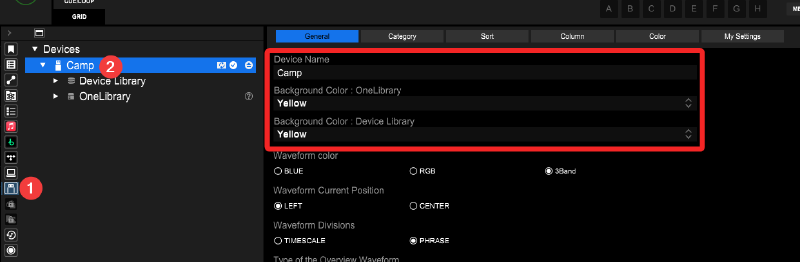
Simple as that! 🎉
In my case, I have my DJ drive named “Camp” and set to “Yellow” for my library colours. But, for the sake of easily differenciating my USB keys I explained earlier, my AV tech drive I mentionned earlier is named “Camp (backline)” and with orange library colours.
I’ve seen some DJays put their email address or social media username as their device name (like bsky@camp.jackle.ca) which is very handy in case it gets lost / forgotten! 🪪
Actually, I think I’m gonna do that after writing this article. 👀
I’ve also seen some other DJays on socials who would have huge DJ libraries and they would spread said library accross multiple devices. Then, they’d use the name and colours to differentiate between their different music libraries / USB drives.
So, as an example, it could be split by style (House, D&B, Dubstep, etc), by time / era (Current, Archive, Oldies, etc) or even by set type (Main, Warmup, After, etc). 🏷️
Of course, there’s also people that just put a joke on there. I used to have “owo” as my backline drive and “èwé” as my DJ drive with funny pictures on the jog for each of them. 🌚
USB DJ settings#
This part is also overlooked often by DJays even though they successfully ID-ed their USBs. It’s so important tho! 😅
Indeed, Rekordbox allows to configure a bunch of performance settings to save right on the USB key. Meaning that once hopping on stage, after the USB drive is plugged in and shown in the SOURCE menu, it is possible to load the DJ settings that were configured at home on Rekordbox. Neat!
Here’s a little tour of what can be changed there. Every important tab to configure are marked with a ❕.
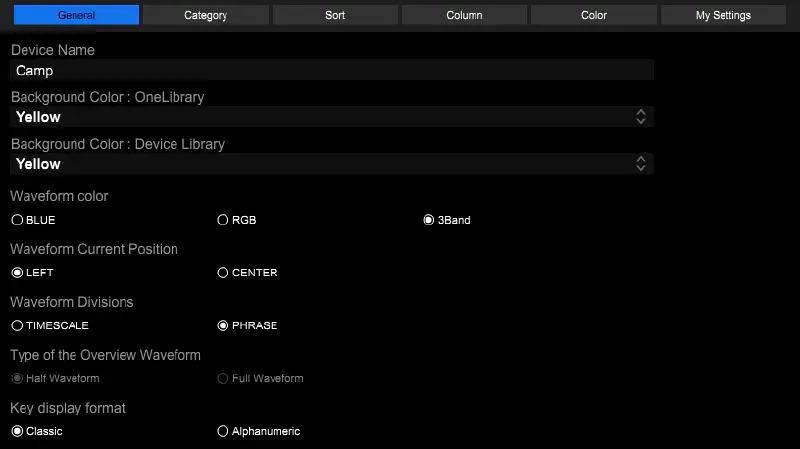
This one has all the essentials to at least get started including:
- Waveform colour, position and divisions
- Songs’ key display format
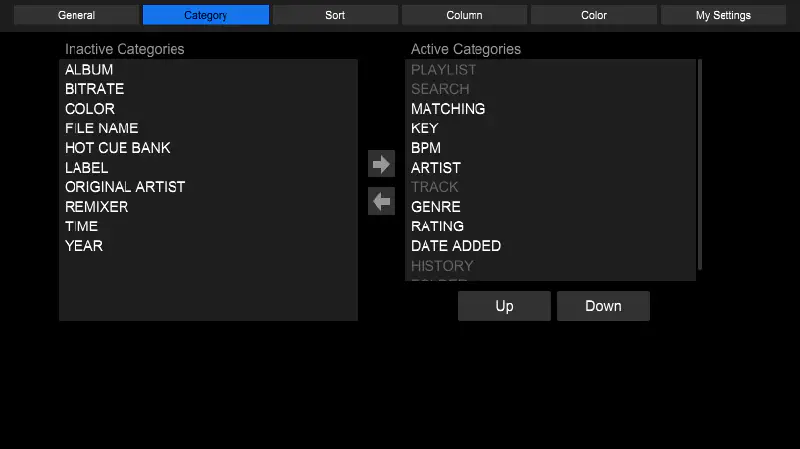
That’s the “views” to make available on the players when at the library’s home.
The configuration settings are burried under a few menu depths, if available at all, so it’s important to set this beforehand. 😅
Less crucial of a setting to set but, again, getting new ones shown on device is a bit hard. I suggest to set this in advance to not loose time with that on stage.
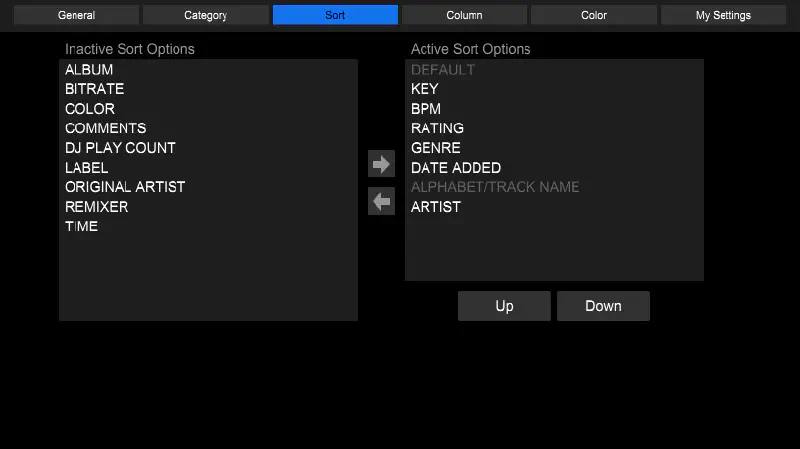
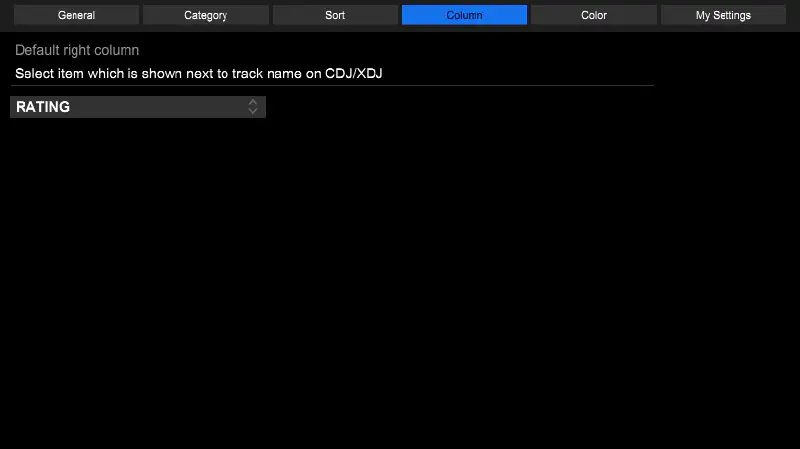
This chooses what information is displayed next to track names when browsing the library. I don’t think it’s possible to rearrange that on device. So, please also set that in advance.
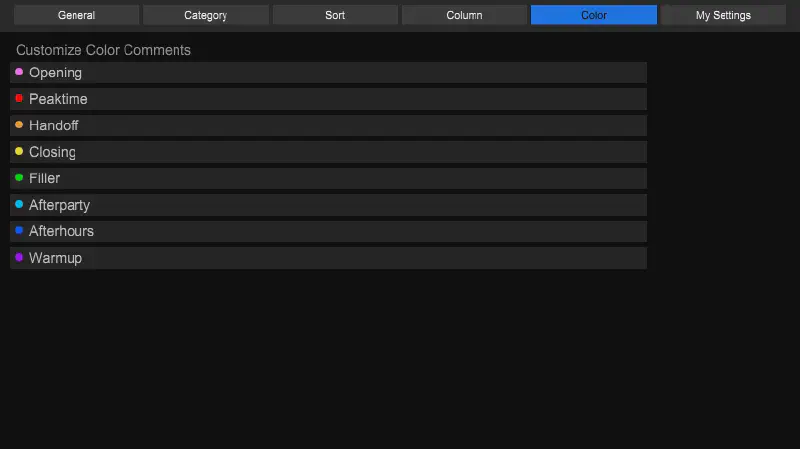
Just make sure that the Color tags are named the same as in Rekordbox’ application preferences. Once in the mix, that’s easy to forget what each colour meant otherwise. 😅
This is probably the most crucial part if DJing with different settings than the default ones. It shows what DJ settings are currently saved in the USB key and that’s these settings that will be possible to load later on.
And indeed, nothing can be changed there most of the time because it is only reflecting the Rekordbox app’s DJ Settings preferences. And of course they don’t give you a button to access them quickly. 🫠
So, open Rekordbox’ preferences and navigate to the DJ Settings page to change them. 🙏
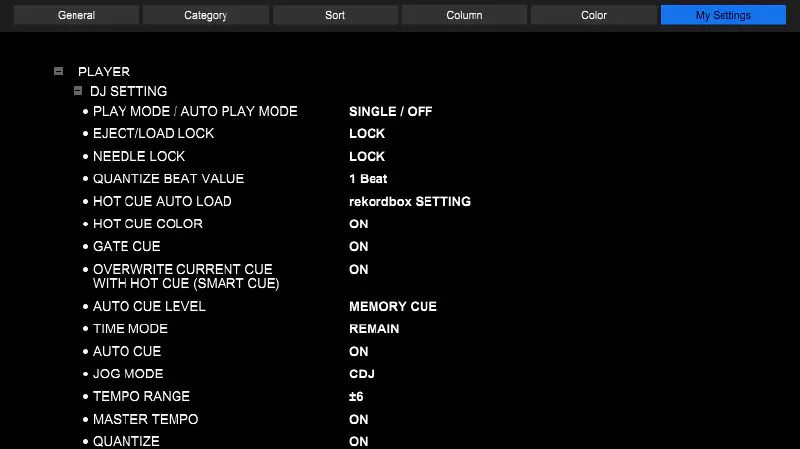
Indeed, there is a bunch of stuff there and, of course, it will not backport new features to older devices (like RGB waveforms that are absent on CDJ-2000NXS(1) and older). But it still sets the whole kit up to be ready to play quickly.
To learn more about each individual setting that’s available on different CDJ models, check out Chris M’s CDJ My Settings Guide on HotCue DJ. He also has an accompanying video on YouTube (archive) for it.
Loading “My Settings” on players#
Once a storage device is set up with the desired settings, there’s three ways to get the profile loaded on players. ✨
- By pressing the MY SETTINGS LOAD button on the right in the SOURCE menu
- By confirming YES to the Sync with My Settings? popup that shows after entering a library from a USB key
- By pressing the LOAD button in the MY SETTINGS section (in the library’s box on the right) of the SHORTCUT menu
Go out and play#
That is all! 🎉
There was indeed a lot of stuff in there but hopefully that was made digestable and, especially, easy to navigate to the info chunks that was interesting for you. Of course, if you have any question about this, poke me on any of my socials. If you found something that could be corrected, don’t hesitate to open an Issue or even a Pull request and I’ll make sure to check it out. ✨
“The following may also be the cause of the problem; If you’re using HDDs that consume more power than the USB port can provide; […]” — AlphaTheta @ OMNIS-DUO support document ↩︎
“The 2-TB barrier is the result of this 32-bit limitation. Because the maximum number that can be represented by using 32 bits is 4,294,967,295, it translates to 2.199 TB of capacity by using 512-byte sectors (approximately 2.2 TB). Therefore, a capacity beyond 2.2 TB isn’t addressable by using the MBR partitioning scheme.” – Microsoft @ Learn Windows Server support document ↩︎
“ExFAT was made to be very portable and optimized for flash drives. It’s lightweight like FAT32, but without the same file size restrictions.” — John Bogna @ PCMag Labo ↩︎
“When updating the unit’s firmware, use a USB storage device formatted in FAT, FAT32 or exFAT.” — AlphaTheta @ CDJ-3000X support document ↩︎
“[…] operating systems don’t always finish their behind-the-scenes work the moment your progress bar disappears.” — CORSAIR, the PC components manufacturer ↩︎
The support documents about partition formats support on the CDJ-3000X player, the XDJ-AZ all-in-one console and the OneLibrary device library (formerly Device Library Plus), released over a month ago, mentions HFS+ today. ↩︎
“When using an HFS+ format USB storage device, music files that use Hangul characters in the file name, artist name, or album name can’t be loaded. In this case, use FAT32 formatted USB storage devices.” — AlphaTheta @ XDJ-RX3 support document ↩︎
“The old Device Library database is just that – old, slow, and limiting for modern hardware. So to support new gear, a new database was needed – and that’s what Device Library Plus is.” — Phil Morse @ Digital DJ Tips news blog ↩︎